Dell Secure Connect Gateway enabled on a cluster or hosts can send health data to the VxRail Support team and provide secure automated access between Support and your VxRail.
This guide shows how I enabled Support Connectivity to one of my VxRail clusters by completing the follow tasks:
- Begin configuration from vCenter
- Test Gateway connection
- Generate Access Keys from the Dell support portal
- Complete configuration from vCenter
- Confirm connectivity
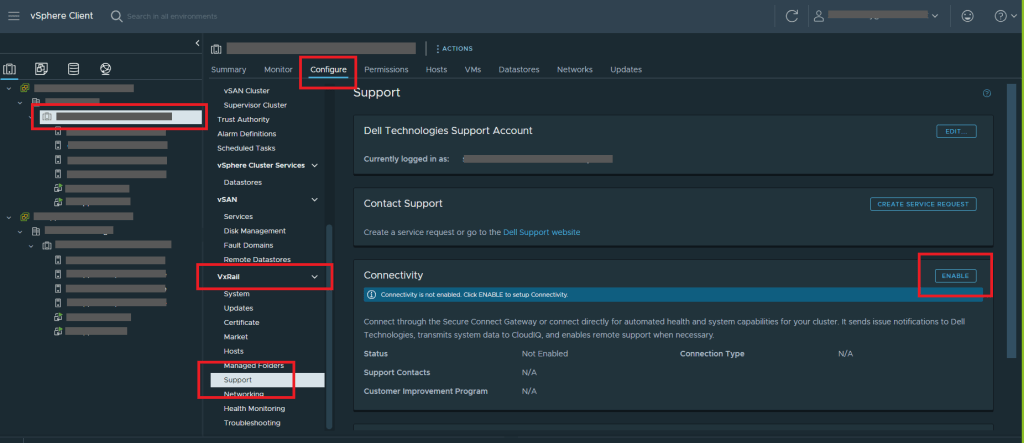
Select VxRail Cluster > Configure tab > VxRail > Support > Click Enable in the Connectivity section
Check to accept the notification > Click Next

Select Connect via Gateway Server > Enter IP address and Port > Click Test Gateway Connection

Confirmation of a successful connection should be displayed > Click Next

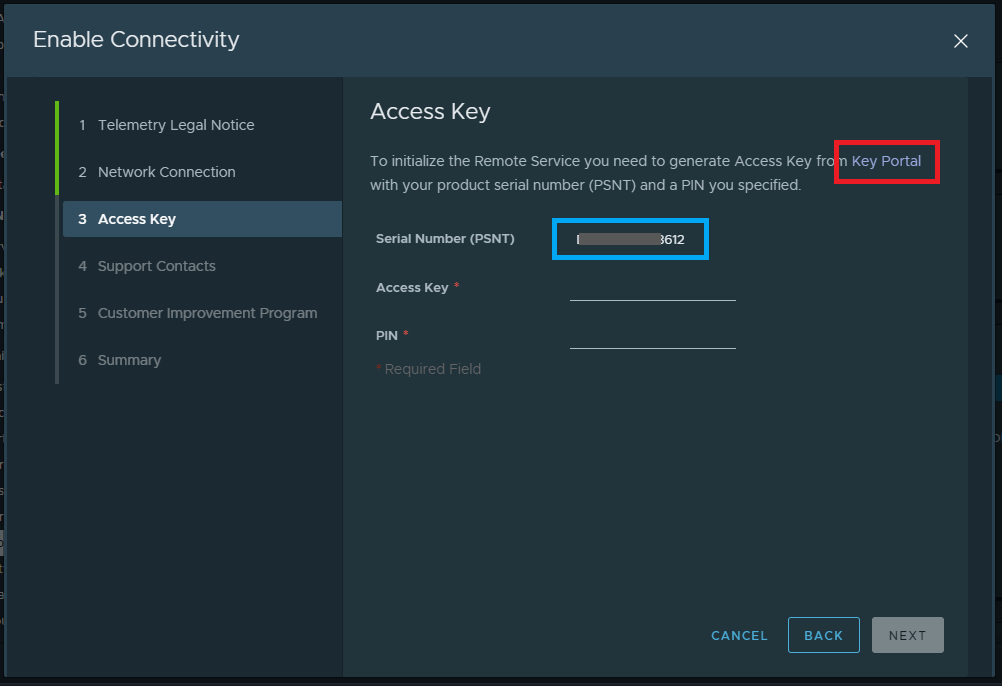
Make a note of the Serial Number (PSTN) > Click the Key Portal link > The Key Portal will open in your web browser
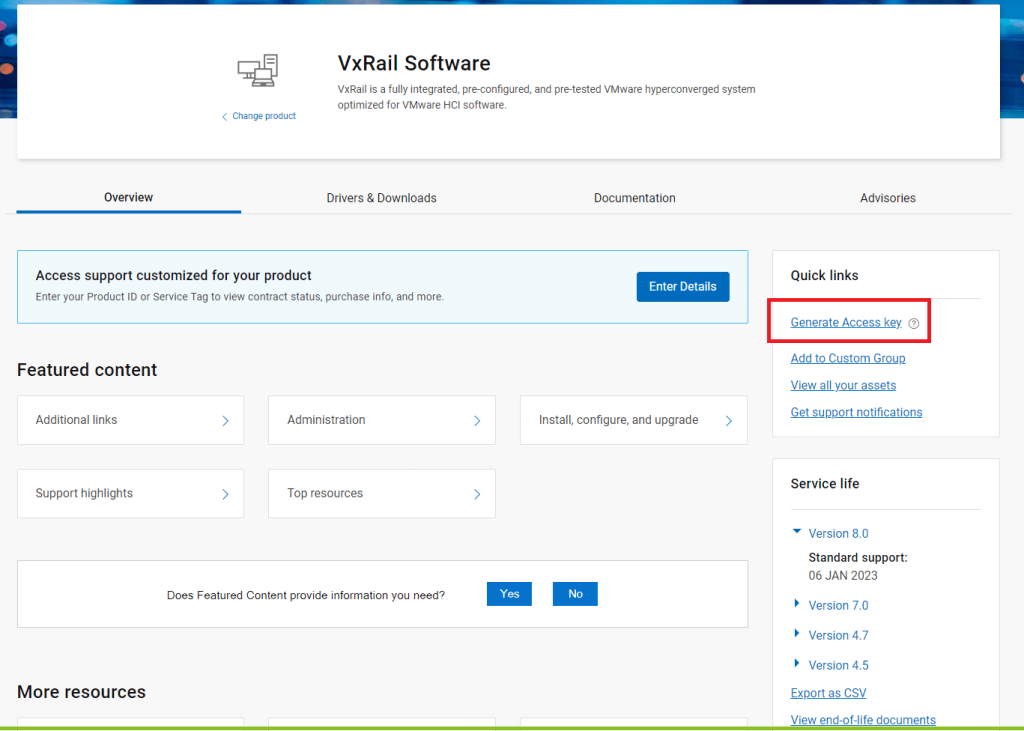
Select Generate Access Key from the Quick links menu
Click Select a different device

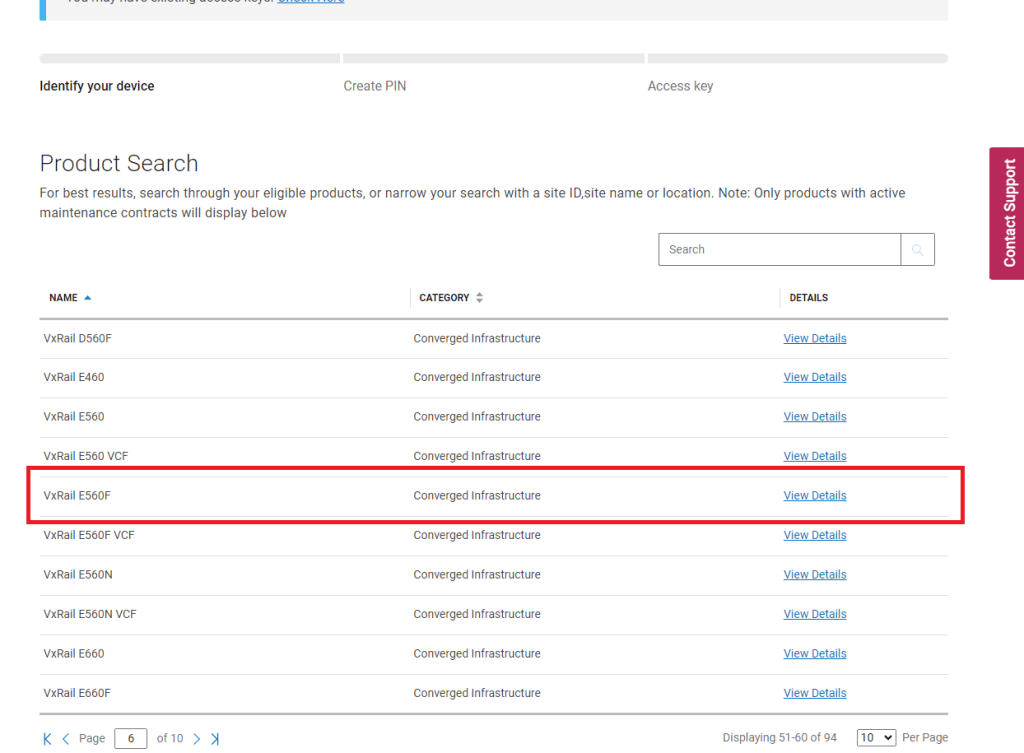
Browse for the correct device model name which you’re trying to connect > Click View Details
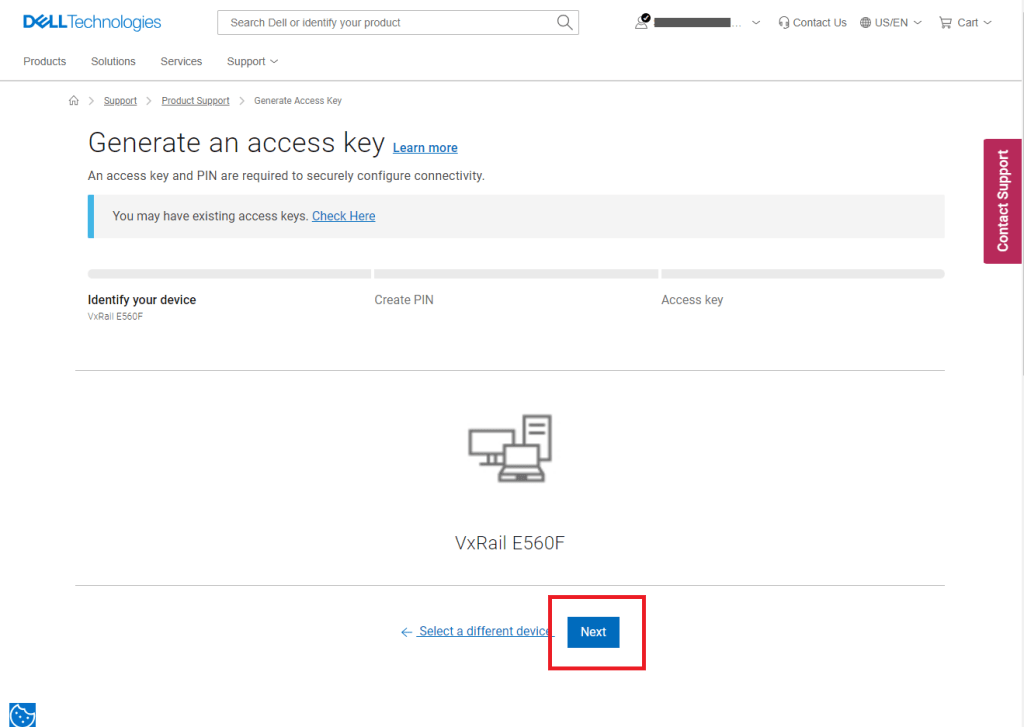
Confirm your device > Click Next
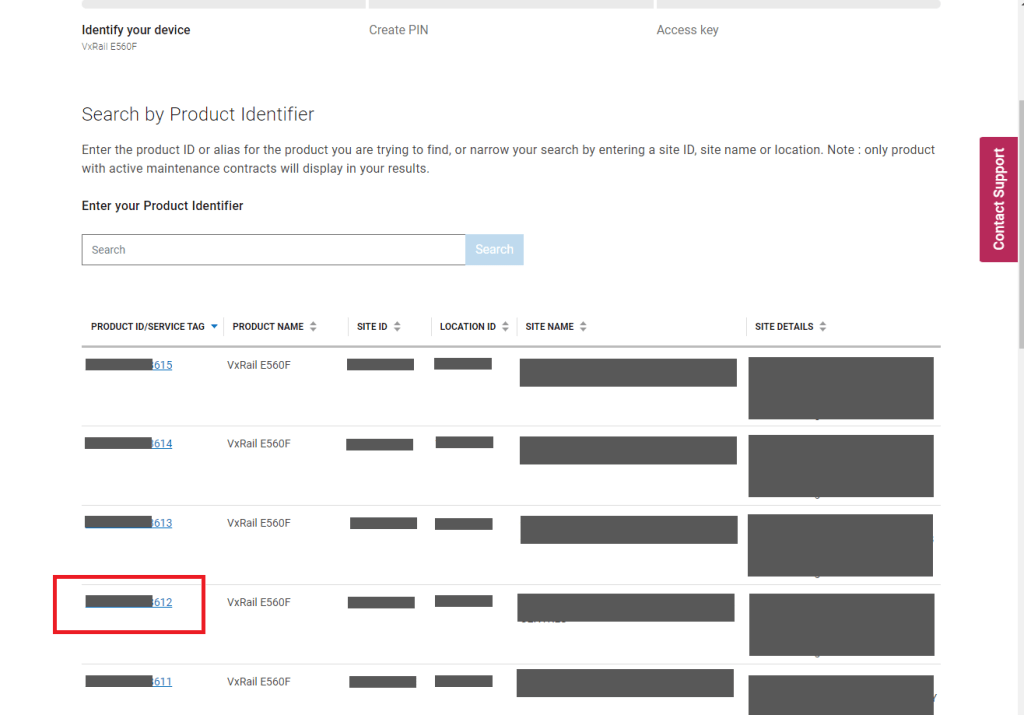
Select the Product ID/Service Tag which was matches the Serial Number/PSTN noted in the Access Key step
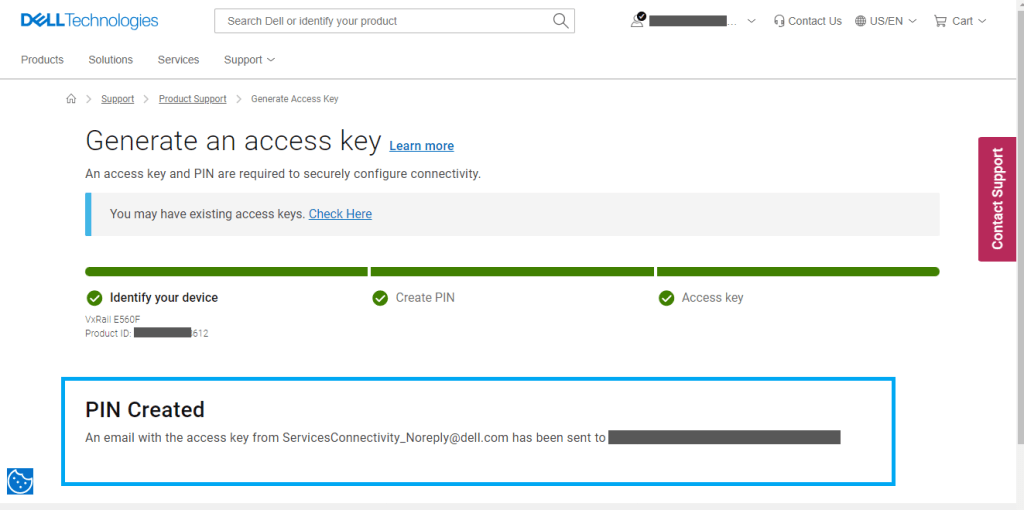
Create a PIN of your choice > Click Create My Access Key

A notification will be displayed for successfully creating the PIN and confirmation of email being sent with the Access Key details
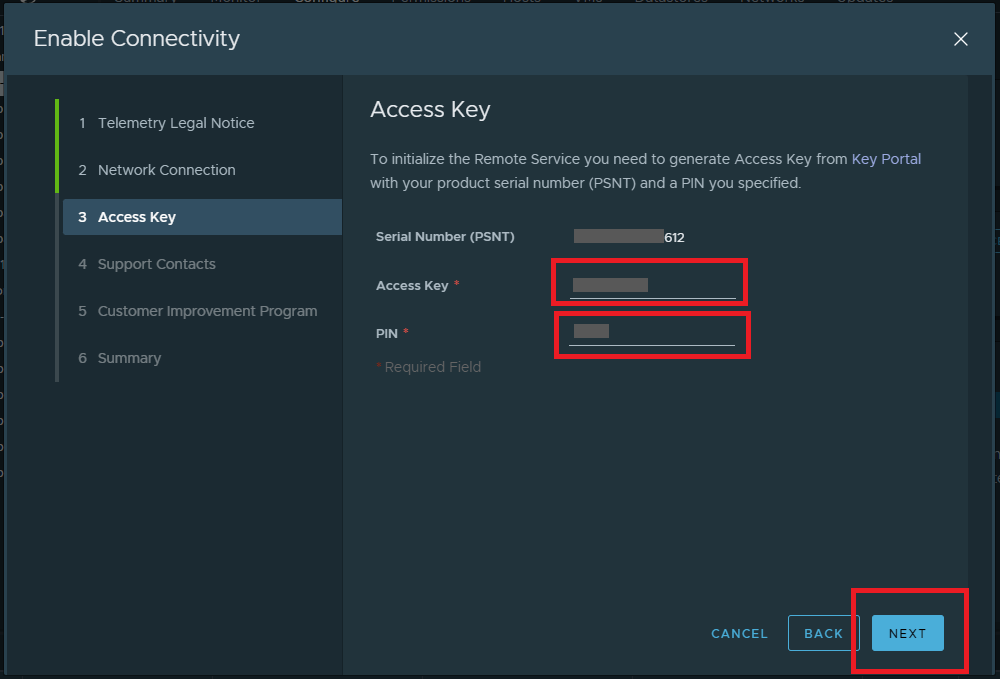
Copy the Access Key from the email > Navigate back to the Connectivity configuration in vCenter > Enter the Access Key and PIN > Click Next
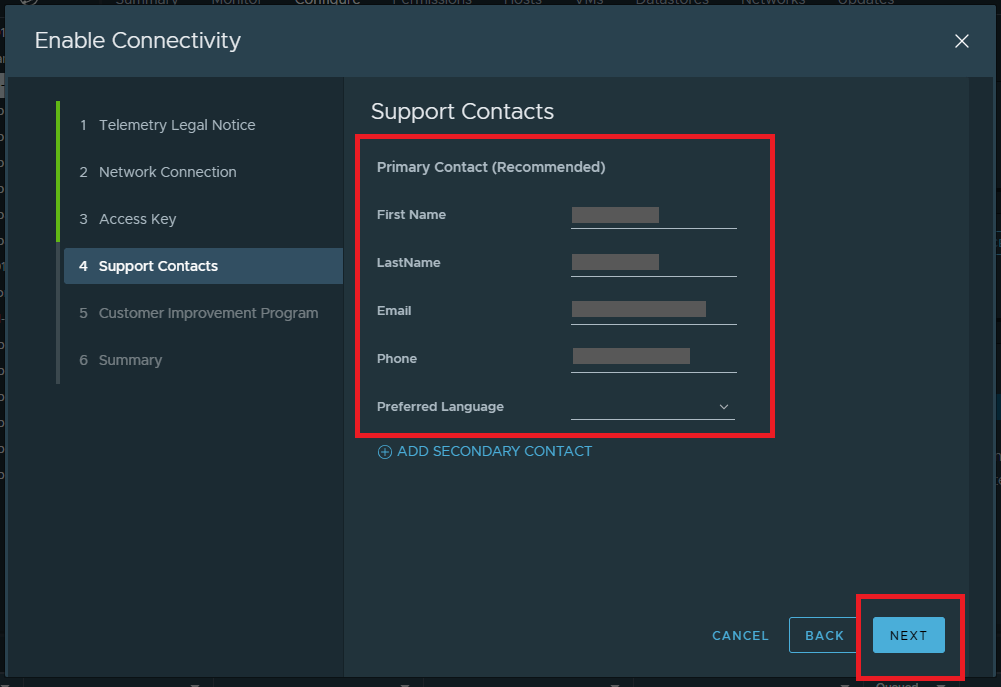
Enter Primary Contact details for Support (+ any additional contacts if required) > Click Next
Select your chosen Customer Improvement Program option based on your requirements. Default is Medium > Click Next

Review all of your configuration > Click Enable


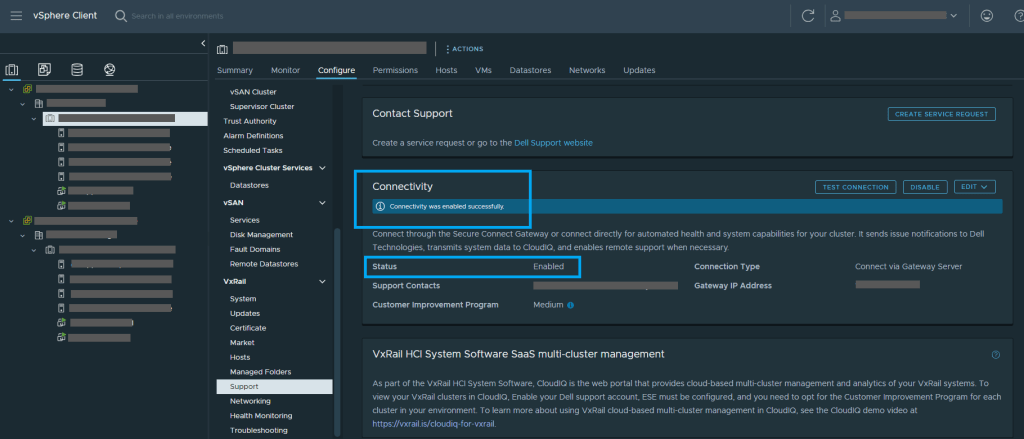
There will be a Connectivity was enabled successfully notification and Status now shows as Enabled
 Define The Data Centre