Putting a VMware ESXi host into maintenance mode is typically a routine task in vSphere environments but sometimes unexpected issues can derail the process.
I encountered a scenario where a single virtual machine prevented the host from entering Maintenance Mode. Attempts to perform a manual vMotion migration failed and the root cause turned out to be a connected virtual CD/DVD drive device with an ISO which wasn’t accessible. To make matters worse, the VM settings were greyed out and there was no success disconnecting the device using the vSphere Client GUI.
This post shows the troubleshooting steps to determine this issue and then how to list devices connected to a VM, identify the connected device and then disconnect the device using SSH which allows the VM to vMotion to another Host in the Cluster.
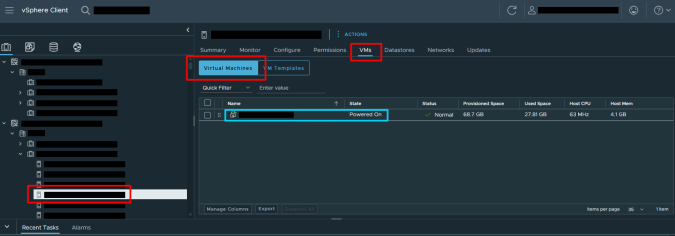
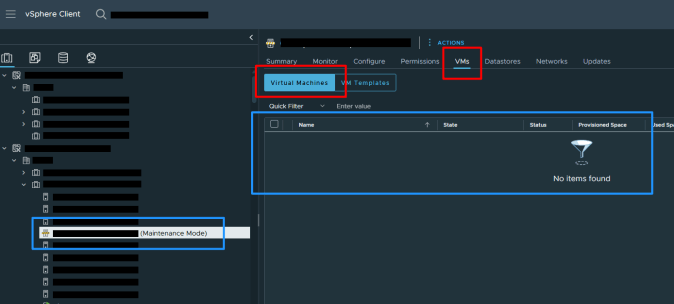
Select the Host in the Cluster from the Inventory pane > Select the VMs tab > Virtual Machines > the VM was still running on the Host
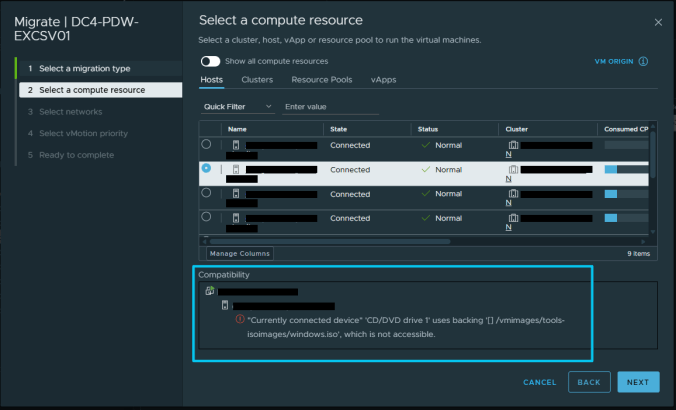
Attempted to Manually vMotion the VM – Right Click the VM > Select Migrate > Select Change compute resource only > Select another Host in the Cluster > The Compatibility area shows an error Currently connected device ‘CD/DVD drive 1’ was using a vmimage ISO image which is not accessible
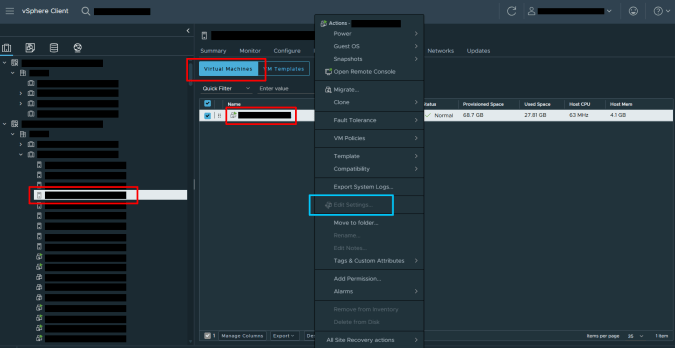
Attempted to Disconnect the device – Right Click VM > the Edit Settings was Greyed out and unable to be selected
The CD/DVD Drive is visible from the VM Summary Settings – Select the VM > Click the drop down arrow next to the Connected status > Click Disconnect

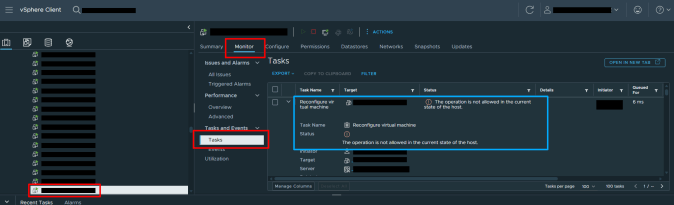
The Disconnect failed so attempted to viewed any info from the Task Details – Select the VM from the inventory > Select Monitor tab > Select Tasks > View any details
As there were no other options to remove the CD/DVD device from the vSphere web client GUI, I wanted to view the devices in via SSH. Usually SSH will be disabled and will need to be enabled manually.
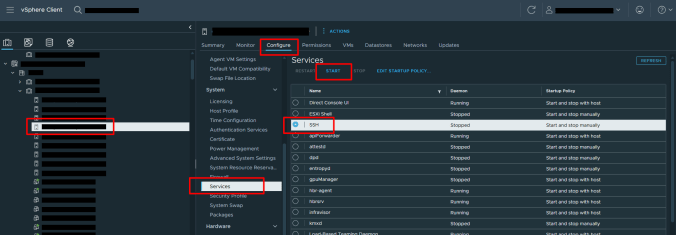
Enable SSH on the host by selecting the Host from the Inventory > Select Configure tab > Select Services > Select SSH > Select Start
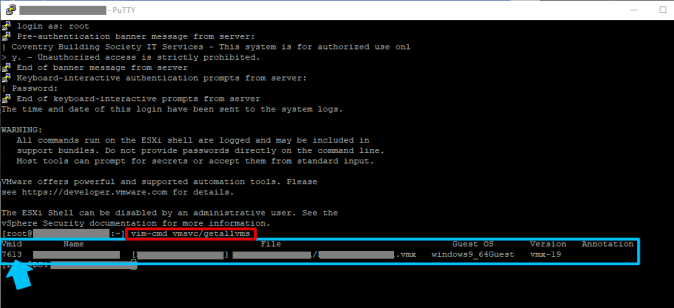
SSH to the Host using Putty > Log in using root

Use the following command to view all of the VMs on the Host:
vim-cmd vmsvc/getallvms
Make a note of the vmid
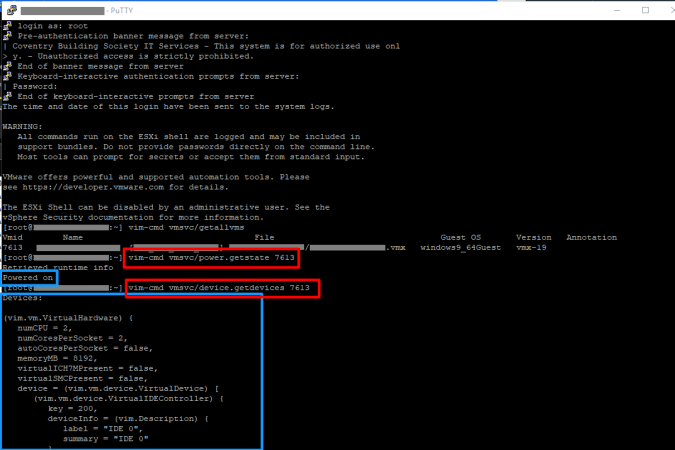
Use the following command to get all of the devices on this VM and use to vmid from the last command
vim-cmd vmsvc/device.getdevices <vmid>. In this case it is vim-cmd vmsvc/device.getdevices 7613
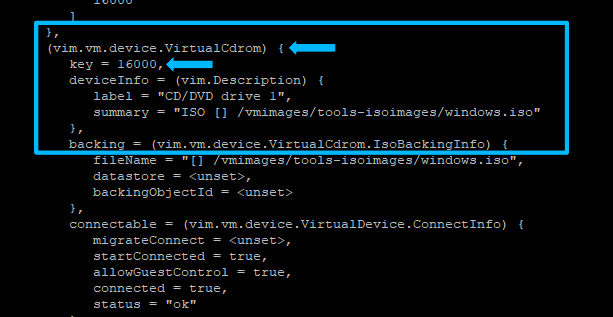
Find the CD/DVD device and make a note of the Key. This Key is16000
Use the following command with the vmid and device key to disconnect the CD/DVD device
vim-cmd vmsvc/device.connection <vmid> <key> false. In this case the command is vim-cmd vmsvc/device.connection 7613 16000 false

Confirm the CD/DVD device is now disconnected
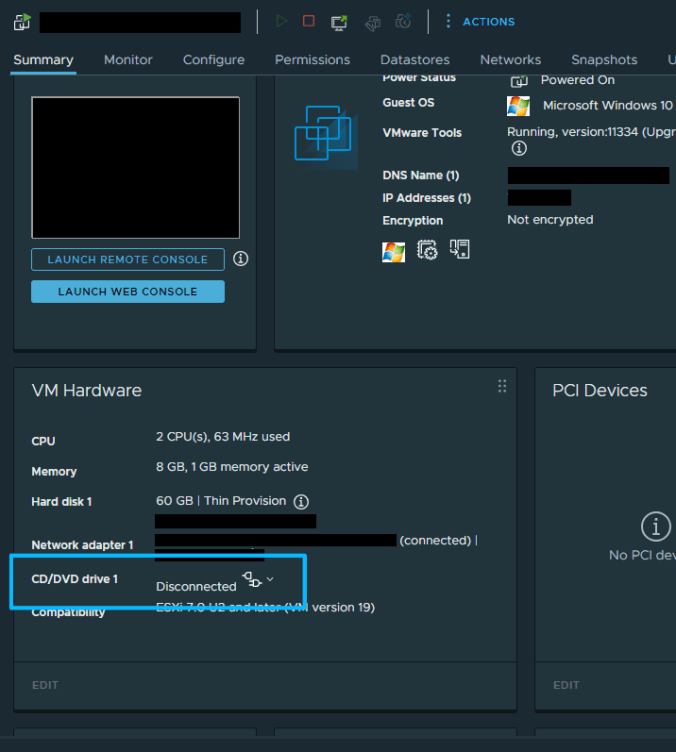
The Host Maintenance Mode should automatically complete because the VM no longer has blocker causing it being unable to vMotion to another Host in the Cluster
The Host is now in Maintenance Mode and there are no VMs on the Host
 Define The Data Centre